Persona: Front desk & floor staff (admins too)
Entry: After Getting started — or jump here if you already know the dashboard
Exit: For renewals and WhatsApp campaigns, continue to Renewals & retention
Step-by-step guides for front-desk and admin daily work. Each section: Purpose → Who can access → Steps → Tips → Common mistakes.
Members#
Purpose#
Maintain member profiles, membership status, photos, and quick actions (renew, remind, pay).
Who can access#
All staff can view members. Editing requires Admin or Employee with Edit members permission.
Add a new member#
- Go to Members → Add member (or Members → New).
- Enter name, phone (required for WhatsApp), plan, and admission payment if applicable.
- Submit — a membership is created automatically when payment is recorded with a plan.
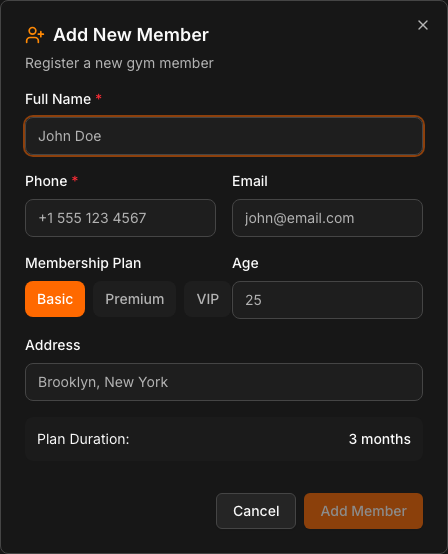
From a lead: Open Leads, convert a lead — the new-member form pre-fills lead details.
Search and filter#
- Open Members.
- Use search by name or phone.
- Filter by status: Active, Expired, Overdue, etc.
Member profile#
Open a member to see:
- Contact details and photo (upload JPEG/PNG/WebP/GIF max 500KB, or Generate avatar)
- Current and past memberships
- Payment history
- Attendance summary
- Quick actions: Renew, Add payment, Send WhatsApp
Renew a membership#
- Open the member profile.
- Click Renew (or Members → [id] → Renew).
- Select plan, confirm amount, record payment.
- Membership extends per business rules (see Glossary).
Send a WhatsApp reminder (manual)#
- From member profile or Renewals, choose Send WhatsApp / reminder.
- The system picks the appropriate lifecycle template based on days to/since expiry.
- Confirm send — message uses your gym’s saved template text with
{{name}},{{plan}},{{expiryDate}}, etc.
Note: Manual sends use the same templates as automation. Only admins can edit template wording in Settings.
Member Protection (optional)#
Some deployments enable Member Protection for reserved member IDs (MEM-001 … MEM000). When enabled:
- Protected members cannot be deleted.
- Only limited fields (address, photo, emergency contact, etc.) can be updated.
Default in open-source installs: off. Ask your admin if your gym uses this.
Tips#
- Always verify phone number before sending WhatsApp.
- Use member photos for faster front-desk recognition.
Common mistakes#
- Recording payment without selecting the correct plan type (GYM vs PT).
- Editing phone on a protected member ID when protection is enabled.
Leads#
Purpose#
Track prospects before they become members.
Who can access#
All staff with Management nav access.
Steps#
- Open Leads.
- Add lead: name, phone, source, status.
- Log follow-ups with dates and notes.
- When ready, Convert to member — opens new-member flow with prefill.
Tips#
- Use consistent lead sources (walk-in, Instagram, referral) for analytics.
Payments#
Purpose#
Record membership fees and other charges; automatically create or extend memberships.
Who can access#
View: all staff. Record/edit: Admin or Employee with Edit payments.
Record a payment#
- Go to Payments or member profile → Add payment.
- Select member, amount (₹), plan, payment method, date.
- Save.
What happens automatically:
| Member state | Membership behavior |
|---|---|
| Active (days remaining) | New period starts day after current end date — no lost days |
| Expired or no membership | New period starts from payment date |
All membership dates use IST calendar dates, not raw timestamps.
Duplicate payment protection#
The system flags likely duplicates when:
- Same member, similar amount (within ₹2), within 3 IST calendar days
Duplicates may be soft-deleted and excluded from reports. Check before recording the same cash payment twice.
Edit or delete payments#
- Edits are audited.
- Global undo may be available shortly after an admin deletes a payment (time-limited).
Warning: Deleting a payment can affect membership dates. Prefer admin review via Tasks for complex fixes.
Tips#
- Match payment amount to the active plan price when possible.
- Use Bills for formal receipts after payment.
Common mistakes#
- Recording payment on wrong date — affects membership start for expired members.
- Ignoring duplicate warning and creating double membership periods.
Attendance#
Purpose#
Daily check-in, walk-ins, free trials, and attendance analytics.
Who can access#
All staff (including employee-only sidebar view).
Mark attendance#
- Open Attendance.
- QR check-in: member scans gym QR or staff scans member code.
- Manual: search member and mark present.
- Walk-in / trial: register visitor flow on the same page.
Badges: overdue vs expired#
| Badge | Meaning |
|---|---|
| Active | Membership valid today |
| Expired | End date before today |
| Overdue | Past renewal date with unresolved tracking |
Members may still check in during a short grace window after expiry (gym policy) — attendance page reflects status.
Tips#
- Use QR during peak hours to reduce queue time.
Common mistakes#
- Assuming check-in alone renews membership — payment is still required.
Bills#
Purpose#
Generate printable receipts and send bill messages on WhatsApp.
Who can access#
All staff with Management access.
Generate and send#
- Bills & Receipts → list or Generate new bill.
- Link to member/payment, review line items.
- Print (
/bills/[id]/print) or Send WhatsApp from bill detail or payments list.
WhatsApp quick admit#
WhatsApp in the sidebar opens a streamlined flow to capture payment and message the member — useful at front desk.
Supplements (GST)#
Purpose#
Sell supplements with GST-compliant invoices.
Steps#
- Supplements (GST) → manage products and orders.
- Create order lines for a member.
- Generate invoice and print GST invoice.
Salaries & expenses#
Purpose#
Track staff salaries and gym operating expenses.
Who can access#
Typically admins and trusted staff with finances access.
- Open Salaries & Expenses.
- Add expense or salary entry, mark paid when settled.
Classes#
Purpose#
Schedule group classes and manage bookings.
- Classes → create schedule slots.
- Members book via dashboard or public booking link (
/book/[slug]).
Workouts & challenges#
Purpose#
Log member workouts and run gym-wide fitness challenges.
- Workouts: per-member exercise logs.
- Challenges: create challenge, members join, view leaderboard.
Agent workspace#
Purpose#
AI-assisted operational hub — goals, chase list, approvals, gym facts.
Who can access#
Admins and staff with workspace access (not hidden in employee-only view).
Note: Suggestions require review; autonomous WhatsApp send is not fully automated in all deployments — approvals may queue without auto-send.
Data repair (admin)#
| Page | Purpose |
|---|---|
| Payments → Future membership stack cleanup | Remove duplicate future-dated memberships (repair tool) |
Admin only. Use only when directed by support or Tasks inbox.